My Virtual Office AI Agent
 by eliautobot
A self-hosted 2D AI workspace for AI Agents
My Virtual Office is an open-source ai agent by eliautobot, written mainly in Python, with 360 GitHub stars and the AGPL-3.0 license. Its code was last updated Aug 15, 2026.
My Virtual Office
A self-hosted 2D pixel office for your AI agents. Turn invisible agent work into a living office you can watch, click and talk to.
What Is It?
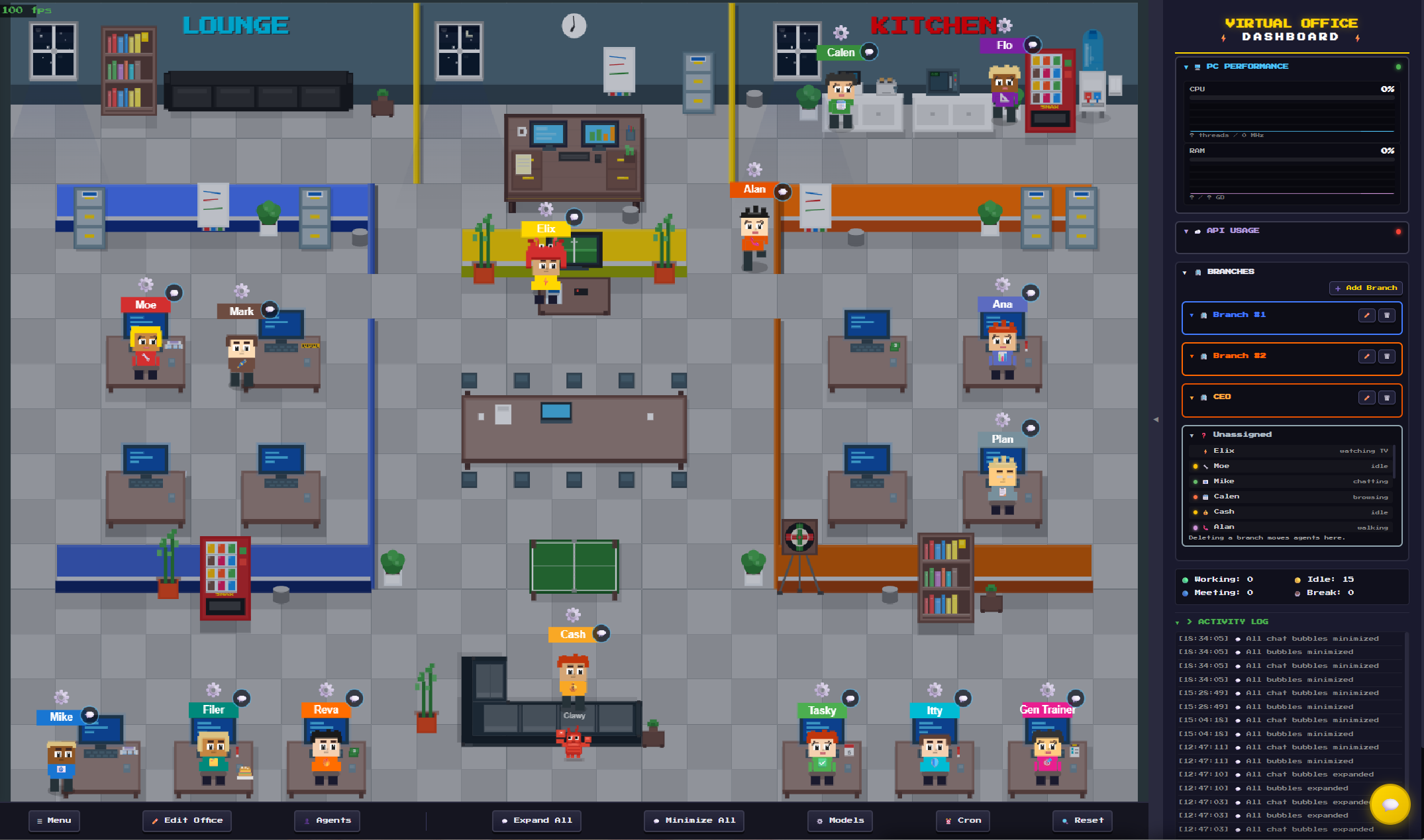
Virtual Office gives your AI agents a place to be. Instead of watching logs scroll by, you see your agents walk to their desks, type at their monitors, gather for meetings, take a coffee break, and chat, all in a charming pixel-art office that runs in your browser.
It connects to the agent tools you already use (OpenClaw, Hermes, Codex, Claude Code, OpenCode and Antigravity) and shows what each agent is really doing, live: the command it runs, the page it reads, the file it edits, the approval it waits for. Click an agent to chat with it, open its PC, or change its settings.
Version 0.12.0 is the Characters release and the first GitHub release since 0.7.4: 21 hair styles, faces that show how each agent is doing, tops, neckwear, costumes and hats, work animations at the desk from what the agent really does, a signature victory move on real wins, waves, furniture that reacts to clicks, eight kinds of office pet with a bed, a bowl and tricks, 13 desk and 12 boss desk designs, and Edit office on phones. One chat window now serves every agent, and voice (dictation, read aloud and voice mode) is free for everyone. It ships together with 0.8.0 to 0.11.0, which run OpenClaw and Hermes on the integration from My Virtual World (several gateways, a device that pairs once, the providers' own menus) and add Office Life, the new art, Agent Studio and the office editor. OpenClaw, Hermes, the chat window and voice need Node.js (the Docker image includes it). Coming from 0.7.x? Read the 0.12.0 release notes first: they start with every breaking change since 0.7.x, then list every new feature, improvement and fix.
Version 0.10.0 is the Polish release: crisp pixel art with chairs, real night lighting and pixel name tags, themes on every page, a new Agent Studio with a live stage, presets and Randomize, an office editor with floor and wall painting, room templates, copy and paste and rotation, and one window style everywhere. See the 0.10.0 release notes. Version 0.10.1 fixes what a full playtest found (live updates behind proxies, a lost-connection banner, phone touch targets, editor and chat details): see the 0.10.1 release notes. Version 0.9.0 brought Office life: the office reacts to your agents' real work (signs at the front desk, interns, couriers, a morning stand-up and a "Daily Office" newspaper), with no AI and no tokens (0.9.0 notes). Version 0.8.0 brought the camera that fits the whole office, a calmer design, a real phone layout, an optional office passcode and a much faster server (0.8.0 notes).
Quick Start
Docker Compose (recommended)
git clone https://github.com/eliautobot/my-virtual-office.git
cd my-virtual-office
docker compose up -d
Then open http://localhost:8090/setup to run the setup wizard.
The compose file runs the published image ghcr.io/eliautobot/my-virtual-office:latest. To run
exactly the source you checked out (for example before its image is published), build it and
point Compose at it:
docker build -t my-virtual-office:0.12.0 ./app
VO_IMAGE=my-virtual-office:0.12.0 docker compose up -d virtual-office
Check which version is running at http://localhost:8090/health (it answers
{"ok": true, "status": "running", "version": "0.12.0"}).
The image includes Node.js 24 and the npm packages OpenClaw and Hermes need. The compose file uses
Docker's bridge network, so the office reaches OpenClaw on your computer at
ws://host.docker.internal:18789 and pairs with it as a device once (see
Connect your OpenClaw).
Plain Python (no Docker)
Needs Python 3 (the image uses 3.12) and, for OpenClaw and Hermes, Node.js 22.19 or newer (24
recommended) with npm on the PATH.
git clone https://github.com/eliautobot/my-virtual-office.git
cd my-virtual-office
python3 -m pip install "websockets==17.0.1"   # the version app/Dockerfile installs
VO_STATUS_DIR=./vo-data python3 app/server.py
The first start installs the OpenClaw and Hermes integration's packages once
(npm ci --omit=dev in app/provider-layer). Without Node, OpenClaw and Hermes stay off and the
office says how to fix it; every other provider works. Then open http://localhost:8090/setup.
Ports
| Port | What |
|---|---|
8090 (VO_PORT) | The office: pages, API and live updates. The only port you need. |
8091 (VO_WS_PORT) | Old raw gateway tunnel: closed unless VO_OPENCLAW_BROWSER_TRANSPORT=direct, and OpenClaw chat in 0.11 never uses it |
The OpenClaw and Hermes integration runs as a second process on a free port of 127.0.0.1 inside
the container (or on your computer); it is never reachable from the network, and the office
server relays to it.
First run
The setup wizard at /setup walks you through:
- License key (or skip to use the demo).
- Name your office.
- Connect agent providers: OpenClaw, Hermes, Codex and Claude Code. The Hermes step uses the same form as the Agent Providers page (see Connect your Hermes). OpenCode and Antigravity are set up on the Providers page (More tools > Providers).
- Agent browser (optional).
- SMS panel (optional, Twilio).
- PC performance (optional).
- Protect your office (optional passcode, see Security).
Every Test button in the wizard tests what you typed without saving it. You can run the wizard again at any time from Settings > Help > Run the setup wizard; it starts from your current settings and only saves what you change.
With the standard Docker Compose file (bridge network), approve the office in OpenClaw once after
the first start: More tools > Providers (Agent Providers) > OpenClaw shows "Waiting for
approval" and the openclaw devices approve <id> command to run on the OpenClaw computer. See
Connect your OpenClaw.
Images and platforms
ghcr.io/eliautobot/my-virtual-office:latestghcr.io/eliautobot/my-virtual-office:<version>for release tags, such as0.12.0ghcr.io/eliautobot/my-virtual-office:<commit-sha-prefix>for exact pins
Images are published for linux/amd64 and linux/arm64, so the office itself runs on x86_64
machines and on ARM64 boards such as a Raspberry Pi 5. The optional Agent Browser recipe in
docker-compose.yml installs Google Chrome and works on x86_64 only; on ARM64 point
Settings > Integrations > Agent browser at any other browser that speaks CDP.
Supported Agent Harnesses
OpenClaw
Virtual Office connects to the OpenClaw Gateway over its WebSocket protocol, through OpenClaw's published client. Agents, chat, models, tools, automations and presence all come from the gateway; several gateways may be connected. The browser never talks to a gateway directly, and gateway credentials stay on the server.
Connect your OpenClaw
- In the office open More tools > Providers (Agent Providers), then Add provider > OpenClaw.
- Gateway address:
ws://127.0.0.1:18789on the same computer, orws://host.docker.internal:18789from the standard Docker Compose file (the first start fills this in fromVO_GATEWAY_URLand the token from your mountedopenclaw.json). - Sign in with the gateway token (
openclaw config get gateway.auth.tokenon the gateway's computer) or the gateway password, choose Full: chat and settings or Chat only, then press Connect OpenClaw. - On the same computer (a loopback address) that is all. From Docker's bridge network or
another computer the office pairs as a device: the page shows "Waiting for approval" and an
openclaw devices approve <id>command with a Copy button. Run it on the gateway's computer (or approve it in OpenClaw's Control UI > Devices); the office connects by itself. After pairing it forgets the gateway token and signs in with its own device token.
OpenClaw's gateway listens on 127.0.0.1 only by default, which a container on Docker's bridge
network cannot reach. Either let the gateway listen on your network (OpenClaw's gateway.bind
set to lan) or run the office with host networking: add network_mode: host to the
virtual-office service (and remove its ports: and networks: lines), then use
ws://127.0.0.1:18789, which needs no pairing. Host networking works on Linux.
With Full access the office may change OpenClaw's settings, agents, automations and the agents' browser (each change is shown to you first; with a passcode set, a change needs the passcode confirmed in the last 10 minutes); with Chat only it chats, switches model and effort per chat, and answers approvals and questions, but changes nothing else. The office never edits OpenClaw's files or restarts the gateway itself.
The mounted OpenClaw home (VO_OPENCLAW_PATH) is still used for the Skills library, for the
gateway token on the first start, and for the optional clean-up of settings 0.7.x wrote into
openclaw.json (only after you confirm). Details: OpenClaw Provider.
Hermes
Virtual Office connects to the hermes serve backend (the one Hermes' desktop app and dashboard
use). One connection covers every Hermes profile, and each profile becomes an office agent. Hermes
keeps ownership of its profiles, tools, sessions, credentials and terminal.
Connect your Hermes
- On the Hermes machine run
hermes serve(default addresshttp://127.0.0.1:9119). - In the office open More tools > Providers (Agent Providers), then Add provider > Hermes. Find next to the address looks on this machine.
- Sign in with a session token (Hermes on the same machine; start it with
HERMES_DASHBOARD_SESSION_TOKEN=<token>so the token survives restarts) or with username and password (Hermes reachable from other machines or from a Docker container; setHERMES_DASHBOARD_BASIC_AUTH_USERNAMEand_PASSWORDfor Hermes). The password is used once; the office keeps Hermes' sign-in and forgets it. - Choose Full: chat and settings (chat plus Hermes' settings, the agent's files and its Bot Desktop) or Chat only, then press Connect Hermes.
Each connection then has its own menu in Agent Providers (models, tools, skills, automations, approvals, sessions and settings; Hermes keeps its Keys tab). Every change is shown in a confirm dialog first, secrets are never shown, and with an office passcode set a change from another machine needs the passcode typed in the last 10 minutes.
Older connections to Hermes' API server (/v1/runs, one profile per API server) keep working in
the office's own chat window, and Agent Providers lists them in a "Hermes API server (older
connection)" section. Switch to the full Hermes connection moves their agents in one click; each agent keeps its id, desk, look and chats, and Switch back undoes it. The
default compose file bind-mounts VO_HERMES_HOST_DATA (default ~/.hermes, read-write) for the
legacy rows' profile files; if you do not use them, set VO_HERMES_RESOURCE_ACCESS=disabled and
VO_HERMES_RESOURCE_VOLUME_MODE=ro, or remove that volume line. Docker creates missing host
folders (also ~/.openclaw) as root. The optional Compose hermes profile runs a pinned
API-server sidecar on an internal-only network.
Sign-in details, access levels, the settings menu, reconnecting, the side panel and a troubleshooting table: Hermes Provider Adapter.
A separate mode lets Hermes connect to Virtual Office as a messaging platform, through the plugin
in integrations/hermes-platform/my_virtual_office/. Turn it on in
Settings > Connections > Hermes connections (tick Hermes messaging gateway platform and set
a long random Gateway platform token), copy the plugin into ~/.hermes/plugins/my_virtual_office/,
set MY_VIRTUAL_OFFICE_URL and MY_VIRTUAL_OFFICE_TOKEN for Hermes, and run
hermes gateway run. The plugin's routes check their own platform token, so they also work when
the office has a passcode; only /api/hermes-platform/status then needs a signed-in browser. See
Hermes Platform Adapter.
Codex
Virtual Office can create Codex-backed office agents when the Codex CLI is available inside the
container. Chat uses Codex's native codex app-server JSON-RPC protocol for thread start and
resume, live progress, approval requests and interrupts; codex exec is only a fallback.
Discovery includes office-created Codex agents, Codex's own $CODEX_HOME/agents/*.toml custom
agents, and a Main entry for the default Codex agent. New agents can live in the default Codex
agents folder (registered under $CODEX_HOME/agents when VO_CODEX_REGISTER_NATIVE_AGENTS=1) or
in a custom parent folder (project-local .codex/agents/<profile>.toml).
Install Codex in the image or set VO_CODEX_BIN to a Codex executable inside the container, and
set VO_CODEX_HOME to a deployment-specific Codex home. The Docker example sets
VO_CODEX_SANDBOX=danger-full-access because Codex's bubblewrap sandbox usually needs extra
container privileges; use a stricter mode when your deployment supports it.
Claude Code
Virtual Office can create Claude Code-backed office agents when the Claude Code CLI is available
inside the container. Chat uses Claude Code's native stream protocol
(claude -p --output-format stream-json --include-partial-messages), so text, tool calls, tool
results, usage, session ids and interrupts work like the other native providers.
Discovery includes office-created Claude Code agents, $CLAUDE_CONFIG_DIR/agents/*.md subagents
and a Main entry. Install Claude Code in the image or set VO_CLAUDE_CODE_BIN, and set
VO_CLAUDE_CODE_HOME to a deployment-specific Claude config folder.
OpenCode
Off by default. Put the opencode CLI inside the container (or set VO_OPENCODE_BIN), then set
VO_OPENCODE_ENABLED=true. Its config folder is VO_OPENCODE_CONFIG_DIR (default
/data/opencode-config).
Antigravity
Off by default. Put the agy CLI inside the container (or set VO_ANTIGRAVITY_BIN), then set
VO_ANTIGRAVITY_ENABLED=true. Sign-in stays with the native CLI; its config folder is
VO_ANTIGRAVITY_HOME (default /data/antigravity-config).
Providers page and extensions
More tools > Providers opens the Agent Providers page, the one home for connections. For Hermes and OpenClaw it holds the connection form (with Test, Reconnect, Switch off and the access level), the list of their agents and each platform's own settings menu; Settings > Connections in the office only shows a summary with Manage in Agent Providers. For the other providers it configures connections, models, permissions, native discovery and session behavior. Sign-in stays native to each tool: for Docker, the CLI and its config folder must be inside or mounted into the container. Virtual Office never copies or shows provider credentials. You can add your own provider as a Python extension, see Provider SDK.
Features
🏢 Live office
- The whole office fits the window when it opens; phones open framed on the agents and their desks.
- Crisp pixel art at every size: the office is drawn at whole pixel steps and phones use their full screen resolution. Settings > General > Office size picks Sharp pixels (default, may leave a margin) or Fill the screen (all the space, slightly softer art).
- One calm palette with a light from the top left and soft shadows. Working agents sit on a chair behind their desk; people walk with front, back and side views.
- Map controls on the canvas: zoom in, zoom out, fit, mini-map, and expand or minimize all chat bubbles. They slide aside when an open chat window would cover them.
- Mouse wheel zooms around the pointer, drag pans, pinch zooms on touch screens, double tap on
empty floor resets the view. Keyboard: arrows or WASD pan,
+/-zoom,0fits. The zoom buttons and keys step through sharp sizes; wheel and pinch settle on the nearest one. - Click (or tap) an agent's body, name tag or
•••to open its launcher: Chat, PC, Bubble and Settings. Clicking a desk monitor opens that agent's PC. - Agents walk around furniture (A* pathfinding with furniture footprints), sit at their desks when working, wander, visit the kitchen, play ping pong or darts when the layout has them, and watch the TV (5 channels).
- Wall occlusion (an agent behind a wall shows as a faint silhouette), and tall furniture (bookshelves, plants, vending machines and more) drawn in front of agents who walk behind it. Agents and the pet never walk on furniture.
- A day and night cycle based on the sunrise and sunset of your weather location, and live weather in the windows (from wttr.in, for the location you set in Settings). At night the office is lit by warm pools over desks and social areas, lamps, glowing screens and moonlight under the windows; windows cast daylight, sunset or moonlight that dims when it is cloudy or rainy.
- A mini-map (off by default): press
Mor the mini-map button in the map controls. It shows when you zoom in; click or tap it to jump there. - Smooth rendering at your display's refresh rate. The still parts of the office are cached, idle frames run at about 30 fps, and drawing pauses when the tab is hidden.
👀 Agents show their real work
- Desk monitors show what the agent is doing: a terminal with the running command, a browser address bar, an editor, a search box, messages; amber while waiting for approval, red after an error, green when done, off when the agent is offline.
- Small pixel chips above an agent (one family with the name tag, pixel font and pixel icons, no
emoji on the office) show the running tool (
$ npm test, a file name, a site, a search), "needs approval", "run failed" and "done". In a crowded office, labels move aside so they do not cover each other. - Thinking shows as rippling dots. Reasoning text is never drawn on the canvas.
- Paper airplanes fly between desks when one office agent messages another. Agents stretch after a long run. Offline agents go back to their desk in grey, with a "Zzz".
- At the desk, agents act out what they really do, for every provider: typing bursts for commands, scrolling for web pages, papers for file edits, looking around for searches, talking for messages and a thinking pose. It always matches the desk monitor.
✨ Office life
The office reacts to real events from your agents. Nothing here calls a model: every sign, line and headline is filled in from data the office already has, so it never costs tokens.
- Needs you: an agent waiting for your OK or an answer walks to the front desk and holds up a sign; click it to open the right card in its chat. It clears as soon as you answer anywhere.
- Interns and handoffs: helper agents appear as interns at a free desk while they run; work sent from one agent to another travels as a folder.
- Visitors and alarm clocks: a message from Telegram, email, SMS and other outside channels arrives with a courier and an envelope (channel name only, never the text); a scheduled job rings an alarm clock on the desk.
- Moods: focused, stuck, relieved, asleep and waiting, from real run outcomes, shown on the agents' faces too.
- Celebrations: "+N XP" pops, confetti, high-fives, a "Project done!" pennant and cake. Each agent plays its own signature victory move on real wins (pick it in Agent Studio > Moves).
- Click reactions: click an agent and it waves; click a lamp, the TV, the vending machine, the coffee maker, the whiteboard and other pieces and they react (only in your browser, never saved, never in edit mode).
- Morning stand-up at a set time: each agent says one line about what it did, saved to Meetings history.
- Seasons and occasions: seasonal decor for your hemisphere, holidays, your own dates, a Friday treat, umbrellas on rainy days, agent birthdays.
- Break-time tournaments: idle agents play ping pong or darts brackets; click a player to cheer.
- The Daily Office: a newspaper about the day at a set time, with an archive and a replay of the day.
- Every part has a switch in Settings > Office life, plus a Calm mode (signs and icons only; with Calm or your system's reduced motion setting, animations become a still pose or an icon). Works for Hermes and OpenClaw, and for every provider as far as its signals go. Details: Office Life.
💬 Chat
- Open chat from the Chat button (key
C) or from an agent's launcher. Use the main window plus up to 3 more chat windows side by side, each with its own agent and session. - Session history browser and a "+" button for a new session.
- Streaming replies with one clear run status line, a Stop button while running, and errors or stopped runs shown in the conversation with Retry.
- Tool activity feed (commands, reads, writes, searches and more) and approval cards for providers that ask for approval.
- Markdown (headings, lists, tables, task lists, code blocks, links, images) with copy buttons on code blocks and on every message.
- Images with thumbnails and a full-size view, file attachments by button, drag and drop or paste (up to 25 MB per file) and audio file transcription.
- Voice, free for everyone: dictation, read aloud and a hands-free voice mode in the chat window,
with the browser's own speech or a voice service added in Settings > Voice (OpenAI,
OpenRouter, Groq, ElevenLabs, Google Cloud, Deepgram, xAI, Qwen, any OpenAI-compatible server or
a Whisper server on your network). Each agent can have its own voice (Agent Studio > Voice).
Browsers only allow the microphone on
https://or onlocalhost. - Unread badge on the Chat button, empty and error states with a way forward, and the agent's own task list and the links of the conversation in the window's side rails (Task Progress).
- Chat bubbles above the agents in the office: readable at any zoom, newest on top, never covering faces or other bubbles; phones show one open bubble at a time.
🖥️ Agent PC
- One persistent Agent PC per agent, opened from its launcher, its desk monitor or a Preview Bubble.
- Browse each provider's real workspace and administrator-approved folders without copying them: Recent files, Sources, Outputs, folder trees and saved snapshots, all read-only.
- Open tabs and navigation are kept across reloads and restarts. Connect Linux paths, Windows folders mounted into Docker, or remote Windows, Linux and macOS computers through the authenticated read-only connector.
- Details: Agent PC Architecture.
🫧 Preview Bubbles
- Live previews above an agent's desk of the files, web pages and browser it is working on: images, Markdown, HTML, code, PDF, audio and video.
- Bubbles avoid each other, can be resized, zoomed (50 to 200 percent), hidden and restored, and are kept across reloads. Turn them on in Settings > General > Preview bubbles.
- Files are limited to the agent's declared folders; hidden files, credential files and private keys are never shown. Browser previews need the Agent Browser (a licensed feature).
📋 Projects
- A Projects board (key
P) with columns, tasks, comments and templates, plus an agent workflow that can start, stop and run tasks automatically. - A Leaderboard of agent scores on the dashboard (tournament wins show as trophies, never as XP).
📅 Meetings
- One-on-one meetings at a desk and group meetings around the meeting table (10 seats).
- Meetings are started by agents (with the built-in
VirtualOffice-Meetingsskill), throughPOST /api/meetings/create, or withapp/update_status.py. - The Meetings window lists active meetings and the history with summaries, including the Office life morning stand-ups.
📚 Skills library
- A central shelf of reusable
SKILL.mdskills (More tools > Skills library). Apply a skill to any agent whose provider supports skills; the agent gets its own copy. - Five built-in office skills teach agents to use the office: presence and status, the Agent Browser, meetings, projects and tasks, and agent-to-agent messages.
- The Skill Workshop in an agent's Desk shows skill changes the agent proposed.
- Details: Skills Library.
🎨 Office editor
- Edit office (key
E): 25+ items (desks, boss desk, meeting table, couches, bookshelves, whiteboards, filing cabinets, plants, vending machines, kitchen, fridge, ping pong table, dart board, TV, front desk, notice board and more) in a catalog of thumbnails drawn by the office itself, with search. Click an item, then the floor, or drag a card onto the floor. Interior walls with doors, and text labels. - What you click is what you get: every click places what the ghost shows, and a red ghost says
why it cannot go there. Snap to a whole tile, a half tile or free (hold
Alt), with alignment guides and equal-gap marks. The office moves aside for the editor panel. - Duplicate, copy, paste and select all;
Ctrl/Cmd+ click adds to a selection and a double click on empty floor selects an area. Desks, the boss desk, the meeting table, kitchen counters, whiteboards and couches turn in 90 degree steps (R, also before placing). Resize the office on all four sides. - Every finished edit saves at once; a status pill on the canvas says Saving, All changes saved or Save failed with Retry. Undo and Redo with the keyboard, and "Deleted ... Undo" in the status bar.
- Tabs: Objects, Layouts, Paint and Pet. Paint has floor materials (checker, wood, carpet,
tile, concrete, plain or your own colours) for an area or the whole floor, an eraser, and a
paint roller for walls. Layouts holds eight room templates (desk pod, desk row, meeting
room, meeting corner, kitchenette, lounge, reception, game corner), the bundled Default Office
and your saved layouts; select furniture, labels and walls as a group, save it and place it
elsewhere; share
.mvo-layout.jsonfiles between installations (Office Layout Assets). - Keyboard:
Ctrl/Cmd+Dduplicate,C/Vcopy and paste,Aselect all,Zundo,Shift+Zredo;Rturn, arrows nudge (Shift= a whole tile),Deleteremoves.Escsteps back one level (closes a card, stops placing or painting, clears the selection) and never leaves the editor;Eor Done does. Press?in the editor for the full list. - On phones: long-press an item to pick it up, drag with one finger, pan and zoom with two. The editor sheet shows two rows of items.
👤 Agent Studio
- Agents (key
G): create agents on any provider that supports it, and change how they look on a big live stage drawn by the office itself, with the desk, chair and name tag. Poses (Stand, Walk, Sit and type, Idle), facing (front, left, right, back) and zoom. - Tabs: Looks, Body, Hair, Face, Outfit, Hats and glasses, Items and desk, Moves and Advanced. Every choice is a picture tile drawn by the office.
- Looks: Male or Female (each list offers that gender's items plus the shared ones), 12 skin tones, 21 hair styles with colour and highlight, eyebrows, eyes, five lash styles, lip colour, facial hair, an expression preview, tops (tee, hoodie, suit, lab coat, sweater, vest, blouse), neckwear (scarf, tie, bow tie, necklace), trousers and shoes, glasses, 12 hats, costumes (lobster, chicken, ghost, Santa, astronaut, dino), ready-made sets (among them Winter, Summer, Halloween and Holiday), held items (coffee, clipboard, tablet, tools, book and more) and desk accessories (trophy, envelope, calendar, chart and more).
- Moves: each agent's signature victory move (8 moves, or let the office pick) with a Play move button on the stage.
- Randomize with locks, preset looks, Reset look, Copy look from another agent, and
undo and redo (
Ctrl/Cmd+Z,Ctrl/Cmd+Shift+Z,Ctrl+Y). New agent has Look and Desk steps. - Each agent has a color tag, an emoji, a branch and a desk (one desk per agent).
- The agent's Desk edits its workspace and profile files with diffs, backups and restore.
🏗️ Branches
- Group agents into branches (departments) with their own color and emoji; colored wall sections per branch. New offices start with "Operations" and "Engineering".
🐾 Office pet
- A cat, pug, lobster (the default lobster is called Clawy), corgi, bunny, fox, duck or turtle that naps, grooms, wanders, greets agents and gets petted. The pet never pulls agents out of their work.
- Click or tap the pet for its own trick. Add a pet bed and a food bowl from the furniture catalog and it sleeps and eats there. Give it a favourite agent: it naps by their desk and greets them. Kind, name and favourite are in the office editor's Pet tab.
📊 Dashboard
- Cards for Agents (live status), Projects, Meetings, Leaderboard, Branches, System and Activity. Cards remember whether they are open.
- System > API usage: provider quota, usage and key health from your OpenClaw configuration.
- System > PC performance: live CPU, RAM and NVIDIA GPU stats from a machine running
app/pc-metrics-server.py(set its URL in Settings > Usage). Both only poll while open.
🔧 More tools
- Models: model and key settings for OpenClaw, Hermes, Codex and Claude Code.
- Providers: the Agent Providers page: every provider's connection, health and options, and the Hermes and OpenClaw settings menus.
- Cron jobs: manage OpenClaw Gateway cron jobs (OpenClaw agents only).
- SMS panel: send and receive SMS and MMS through Twilio.
- Agent browser: watch agents browse in a live window, with a URL bar and take-control.
- Daily Office and Replay the day: today's Office life newspaper with its archive, and a replay of the day on the office (shown while the newspaper is on).
⚙️ Settings
- Press
,or open Settings. Tabs: General (office name, weather location, display switches, Office size, preview bubbles), Themes, Office life (every Office life switch, Calm mode, stand-up and newspaper times, seasons, tournaments, time zone, history length), Connections, Usage, Integrations, Security (office passcode), Data and Help (setup wizard).
🌗 Themes and phone layout
- Classic, Retro Pixel, Cyberpunk Neon and Gameboy Classic themes, each in dark and light, plus a Custom theme you build in the Theme studio (Settings > Themes). Every page, panel, menu and window follows the theme; themes style the interface only, the office itself looks the same in every theme, light or dark.
- One window style for every window and dialog, pixel icons on buttons and controls, and no interface text below 11 px.
- Self-hosted fonts (Press Start 2P for titles, Inter for text) and a built-in pixel font for everything drawn on the office; no Google Fonts requests.
- On phones and narrow windows: a top bar, the office, an action bar and a bottom sheet that slides between peek, half and full. Settings and other windows open full screen. Touch targets are at least 44 px.
- Keyboard friendly: windows trap focus,
Esccloses them,?opens Help (in the office editor it shows the editor's shortcut card), focus rings show for keyboard use, and every control has a name for screen readers.
Demo and Full License
Free demo
Works without a license key:
- Up to 3 agents in the office. With more connected, the office first takes one agent from each provider, in the order it finds the providers (an online agent when it has one), then fills the free places in that order. So with 3 providers or fewer each gets at least one agent in the office; with 4 or more (say OpenClaw, Hermes, Codex and Claude Code), the providers found last get none. The chat window still lists and chats with every connected agent.
- Chat with them, Agent PC, Preview Bubbles for files and web pages.
- Voice: speech to text, read aloud, voice mode, voice services (Settings > Voice) and each agent's own voice (click the agent > Voice, or Settings > Voice).
- Projects, Meetings, Skills library, Models and Providers pages, branches.
- Weather and day and night, themes, API usage and PC performance.
- The office pet (its settings live in the office editor).
Demo mode shows a DEMO badge (in the dock, and in the top bar on phones). These features are locked and show a short "licensed feature" window instead:
- Agent Studio: creating agents and changing their looks, branch and desk (an agent's voice is free, above).
- Edit office: furniture, walls, floors, layouts and pet settings.
- Cron jobs page.
- SMS panel.
- Agent browser panel (and browser previews in Preview Bubbles).
Full license
Unlocks everything above: unlimited agents, Agent Studio, the office editor and layouts, pet settings, Cron jobs, the SMS panel and the Agent Browser, and removes the DEMO badge.
How to activate
Enter your key in the first step of the setup wizard at http://<host>:8090/setup. To add a key
later, click the DEMO badge or open Settings > Help > Run the setup wizard. Keys look like this:
xxxxxxxx-xxxx-xxxx-xxxx-xxxxxxxxxxxx
The key is checked once online with Lemon Squeezy and then works offline. It is stored in
/data/license.json and survives restarts and updates.
Security and Remote Access
Virtual Office is a control surface for real agents: whoever can use it can make your agents do work. It is built for your own machine, your LAN, or a private network.
Always on
- Cross-site protection. Requests that change anything must come from the office's own page. A web page on another site cannot post to your office, even from your own browser. There is no permissive CORS.
- Host check. The office answers to IP addresses,
localhost, single-word LAN names and private suffixes such as.local,.lan,.home.arpa,.internaland.ts.net. Any other host name (for example a public domain behind a reverse proxy) must be listed inVO_ALLOWED_HOSTS, or the office must have a passcode. This blocks DNS-rebinding attacks. - Safe files. Only the app's own files are served; previews and Agent PC stay inside the declared agent folders and never show credential files.
- No Gateway token in the browser. OpenClaw traffic goes through the office server.
- No framing by other sites. Every page is sent with
X-Frame-Options: SAMEORIGINandContent-Security-Policy: frame-ancestors 'self', so another site cannot load the office in a hidden frame and trick you into clicking it. The office's own windows still work.
Optional office passcode
Set a passcode in the setup wizard or in Settings > Security (at least 4 characters).
-
Browsers then sign in once on
/login.htmland get an HttpOnly session cookie that lasts 30 days. Wrong passcodes are rate limited (8 tries per 5 minutes). After sign-in the login page only sends you back to a page of the office itself, never to another site. -
Requests from the office machine itself (loopback) skip the passcode, so local agents keep working.
-
Agents on other machines, or in other Docker containers, send the agent API token as
Authorization: Bearer <token>orX-Virtual-Office-Token: <token>. Copy it from Settings > Security (shown once a passcode is set), or set a fixed one withVO_AGENT_API_TOKEN. The token can use the API (status, chat, meetings, tasks, files) but cannot change the passcode, settings (provider and setup settings, the gateway, model providers and keys, the licence) or add and delete agents: those need a person signed in to the office. A request that sends the token is treated as an agent even from the office machine. -
With Docker's default bridge network the host's own requests arrive from the bridge address (often
172.17.0.1), not loopback. List that address inVO_TRUSTED_CLIENT_IPSif agents on the host should skip the passcode. -
Without a passcode the office is open to everyone who can reach its port, as in earlier versions.
-
Forgot the passcode? Remove it from inside the container (requests from there count as the office machine):
docker exec virtual-office python3 -c "import urllib.request as u; print(u.urlopen(u.Request('http://127.0.0.1:8090/api/access/passcode', data=b'{\"next\": \"\"}', headers={'Content-Type': 'application/json'})).read())"
What is exposed on your network
- Port
8090(VO_PORT): the office and its API, on every interface of the host. - Port
8091(VO_WS_PORT): published by the compose file, but nothing listens there unless you setVO_OPENCLAW_BROWSER_TRANSPORT=direct(old direct Gateway mode; the default is the same-origin proxy). - The OpenClaw and Hermes integration (0.11) listens on
127.0.0.1only, on a free port inside the container; the office server relays to it. - The optional Hermes sidecar is not published. The optional Agent Browser recipe publishes the
KasmVNC viewer (
6901, passwordBROWSER_VNC_PASSWORD) and the Chrome DevTools port (9222), which gives full control of that browser: keep both on a trusted network or bind them to127.0.0.1.
Remote access
- Use a private network such as Tailscale instead of opening router ports. Set a passcode when other people share that network.
- Do not expose Virtual Office or your agent gateways directly to the public internet. If you
put it behind a reverse proxy with a public domain, use HTTPS, set a passcode, and add the
domain to
VO_ALLOWED_HOSTS. The proxy may rewriteHost; the office also acceptsX-Forwarded-Host. Behind a reverse proxy, live updates are counted per open page, so every browser gets its own.
Configuration
App settings are stored in /data/vo-config.json (the vo-data volume), edited through
Settings and the setup wizard. Environment variables override the file until you change that
setting in Settings or the setup wizard: from then on the value you saved is used (the port, the
WebSocket port and the data folder always come from the environment). Only the variables that
reach the container count: with Docker Compose that means the variables listed under
environment: in docker-compose.yml. Putting a variable in .env only fills in those
${...} placeholders.
Variables the compose file forwards
| Variable | Default (compose) | What it does |
|---|---|---|
VO_OFFICE_NAME | Virtual Office | Office display name |
VO_PORT | 8090 | HTTP port |
VO_WS_PORT | 8091 | Raw Gateway WebSocket tunnel, only used with VO_OPENCLAW_BROWSER_TRANSPORT=direct |
VO_GATEWAY_URL | ws://host.docker.internal:18789 | OpenClaw Gateway WebSocket URL (app default without Docker: ws://127.0.0.1:18789). With 0.11 it fills in the first OpenClaw connection once; after that the address is edited in Agent Providers |
VO_GATEWAY_HTTP | http://host.docker.internal:18789 | OpenClaw Gateway HTTP URL (0.10 path) |
VO_PROVIDER_LAYER | 1 | 0 keeps 0.10's Python OpenClaw and Hermes path for this release (legacy, removed in the next one) |
VO_OPENCLAW_PATH | ~/.openclaw on the host, /openclaw inside | OpenClaw home folder (Skills library, the gateway token on the first start) |
VO_OPENCLAW_GATEWAY_PATH | auto-detected | OpenClaw home path as the Gateway sees it (detected from the agents' workspace-<id> folders or asked from the gateway; set it when New Agent says so) |
VO_STATUS_DIR | /data | Office data folder (the vo-data volume) |
VO_ALLOWED_HOSTS | (empty) | Extra host names the office answers to, comma separated (.example.com allows subdomains) |
VO_AGENT_API_TOKEN | (generated) | Fixed agent API token; otherwise one is generated and shown in Settings > Security when a passcode is set |
VO_TRUSTED_CLIENT_IPS | (empty) | Client addresses treated as the office machine (skip the passcode), comma separated |
VO_WEATHER_LOCATION | (empty) | Weather location; also settable in Settings > General |
VO_AGENT_PC_RECENT_LIMIT | 100 | Recent files kept per agent on its Agent PC |
VO_AGENT_PC_PATH_MAPPINGS_JSON | [] | Approved local or remote folders for Agent PC |
VO_AGENT_PC_ALLOW_INSECURE_CONNECTORS | false | Allow non-loopback HTTP Agent PC connectors |
VO_HERMES_ENABLED | true | Hermes API connections |
VO_HERMES_CONNECTIONS_JSON | [] | Hermes connections (id, name, apiUrl, apiKey) |
VO_HERMES_LOCAL_PROFILES_ENABLED | false | List and create local Hermes profiles in VO_HERMES_HOME |
VO_HERMES_HOME | /data/hermes-home | Hermes home inside the container |
VO_HERMES_RESOURCE_ROOT | /data/hermes | Where the Hermes data mount appears inside the container |
VO_HERMES_RESOURCE_ACCESS | read-write | read-write, read-only or disabled |
VO_HERMES_CONTEXT_MAX_MESSAGES | 120 | Turns replayed to a continuing Hermes run |
VO_HERMES_CONTEXT_MAX_CHARS | 120000 | Total replayed characters |
VO_HERMES_CONTEXT_MAX_MESSAGE_CHARS | 32000 | Characters per replayed message |
VO_HERMES_BIN | hermes | Hermes CLI inside the container |
VO_CODEX_ENABLED | true | Codex provider |
VO_CODEX_HOME | /data/codex-home | Codex home (also sets CODEX_HOME) |
VO_CODEX_BIN | codex | Codex CLI inside the container |
VO_CODEX_WORKSPACE_ROOT, VO_CODEX_MAIN_WORKSPACE | /data/codex-agents, /data/codex-main | Codex workspaces |
VO_CODEX_PREFER_APP_SERVER | 1 | Use codex app-server |
VO_CODEX_SANDBOX | danger-full-access | Codex sandbox mode |
VO_CODEX_APPROVAL_POLICY | never | Codex approval policy |
VO_CODEX_INCLUDE_MAIN, VO_CODEX_INCLUDE_NATIVE_AGENTS, VO_CODEX_REGISTER_NATIVE_AGENTS | 1 | Codex discovery and registration |
VO_CLAUDE_CODE_ENABLED | true | Claude Code provider |
VO_CLAUDE_CODE_HOME | /data/claude-code-home | Claude config folder (also sets CLAUDE_CONFIG_DIR) |
VO_CLAUDE_CODE_BIN | claude | Claude Code CLI inside the container |
VO_CLAUDE_CODE_WORKSPACE_ROOT, VO_CLAUDE_CODE_MAIN_WORKSPACE | /data/claude-code-agents, /data/claude-code-main | Claude Code workspaces |
VO_CLAUDE_CODE_PERMISSION_MODE | acceptEdits | Claude Code permission mode |
VO_CLAUDE_CODE_MODEL | (empty) | Default Claude Code model |
VO_CLAUDE_CODE_INCLUDE_MAIN, VO_CLAUDE_CODE_INCLUDE_NATIVE_AGENTS, VO_CLAUDE_CODE_REGISTER_NATIVE_AGENTS | 1 | Claude Code discovery and registration |
VO_OPENCODE_ENABLED | false | OpenCode provider |
VO_OPENCODE_BIN, VO_OPENCODE_CONFIG_DIR | opencode, /data/opencode-config | OpenCode CLI and config |
VO_OPENCODE_WORKSPACE_ROOT, VO_OPENCODE_MAIN_WORKSPACE | /data/opencode-agents, /data/opencode-main | OpenCode workspaces |
VO_OPENCODE_INCLUDE_MAIN, VO_OPENCODE_INCLUDE_AGENTS, VO_OPENCODE_REGISTER_AGENTS | 1 | OpenCode discovery and registration |
VO_ANTIGRAVITY_ENABLED | false | Antigravity provider |
VO_ANTIGRAVITY_BIN, VO_ANTIGRAVITY_HOME | agy, /data/antigravity-config | Antigravity CLI and config |
VO_ANTIGRAVITY_WORKSPACE_ROOT | /data/antigravity-agents | Antigravity workspaces |
VO_ANTIGRAVITY_PRINT_TIMEOUT | 5m | Antigravity run timeout |
Compose-only settings (used by docker-compose.yml, not by the app)
| Variable | Default | What it does |
|---|---|---|
VO_IMAGE | ghcr.io/eliautobot/my-virtual-office:latest | Image to run (pin a version or a local build) |
VO_HERMES_HOST_DATA | ~/.hermes | Host Hermes folder mounted for profile resources |
VO_HERMES_RESOURCE_VOLUME_MODE | rw | Mount mode; ro makes the mount read-only |
VO_HERMES_IMAGE | nousresearch/hermes-agent:v2026.8.3 | Optional Hermes sidecar image |
VO_HERMES_API_KEY | (empty) | Sidecar API_SERVER_KEY (give the connection the same key) |
VO_HERMES_UID, VO_HERMES_GID | 10000 | Sidecar file owner |
PUID, PGID | 1000 | Used by the commented user: line to run as your host user |
BROWSER_VNC_PASSWORD | changeme | Agent Browser recipe viewer password |
Read by the app but not forwarded by the compose file
Add these to the environment: list, or to a docker-compose.override.yml (Compose merges it
automatically), before using them:
services:
  virtual-office:
    environment:
      - VO_WHISPER_URL=http://host.docker.internal:8087
| Variable | What it does |
|---|---|
VO_CONFIG | Path of the settings file (default /data/vo-config.json) |
VO_GATEWAY_TOKEN (or OPENCLAW_GATEWAY_TOKEN) | OpenClaw Gateway token, when it cannot be read from openclaw.json |
VO_OPENCLAW_BROWSER_TRANSPORT | proxy (default) or direct (old raw WebSocket tunnel on VO_WS_PORT) |
VO_WHISPER_URL | Whisper server for voice input; when set, it is added once to Settings > Voice as "Whisper server (this network)" |
VO_PC_METRICS_URL | PC metrics server (also in Settings > Usage) |
VO_CDP_URL, VO_VIEWER_URL | Agent Browser CDP and viewer URLs (also in Settings > Integrations) |
VO_TWILIO_ACCOUNT_SID, VO_TWILIO_AUTH_TOKEN, VO_TWILIO_FROM_NUMBER, VO_SMS_OWNER_AGENT_ID | SMS panel (also in the setup wizard) |
VO_TIMEZONE (or TZ) | Office time zone for Office life (stand-up, newspaper, office day) when none is set in Settings > Office life; otherwise UTC until a browser adopts its zone |
VO_HERMES_TIMEOUT_SEC | Hermes run timeout (default 600) |
VO_HERMES_PLATFORM_ENABLED, VO_HERMES_PLATFORM_TOKEN, VO_HERMES_PLATFORM_AGENT_ID | Hermes messaging platform bridge (also in Settings) |
VO_PROVIDER_EXTENSION_DIRS | Extra provider extension folders, : separated |
VO_PL_KEY_FILE | Key file that seals the OpenClaw and Hermes secrets (default provider-layer.key in the data folder) |
VO_UPDATE_CHECK | 0 turns off the new version check for the whole server (see Updating) |
VO_UPDATE_REPO | GitHub owner/name whose releases the update check reads (default eliautobot/my-virtual-office) |
VO_CODEX_MODEL, VO_CODEX_TIMEOUT_SEC, VO_CLAUDE_CODE_TIMEOUT_SEC, VO_OPENCODE_MODEL, VO_OPENCODE_TIMEOUT_SEC, VO_ANTIGRAVITY_MODEL, VO_ANTIGRAVITY_SANDBOX, VO_ANTIGRAVITY_TIMEOUT_SEC | Provider defaults |
Where your data lives
/data(thevo-datavolume):vo-config.json(settings),office-config.json(layout),license.json,access.json(passcode hash, agent token, sign-in sessions), saved layouts, projects, Agent PC history and chat metadata./data/office-life/: the Office life journal (one small file per day, kept 14 days by default, 40 MB at most), printed newspapers and stand-up state. No message text is stored there.- Agent Providers files in
/data, all private to the office (files 0600, folder 0700):agent-providers.json(Hermes and OpenClaw connections, access levels, legacy switch state),provider-secrets.json(session tokens, sign-in tokens and other provider secrets; never shown again after you save them),provider-audit.log(one line per setting change: time, connection, method, never values),provider-agents-cache.json(last good list of Hermes profiles),provider-media.key(signs short-lived media links) and theprovider-media/cache.vo-config.jsonis kept at mode 0600 too. vo-config.json.pre-hp: a one-time backup ofvo-config.jsonmade before the 0.8.0 upgrade moves connections to Agent Providers. Keep it until you are happy with the upgrade./data/provider-layer/(0.11): the OpenClaw and Hermes integration's database (connections, agents, chats), with its secrets sealed by the key file/data/provider-layer.key. Back them up together: without the key the sealed secrets cannot be read. The 0.10 files it took its connections from stay in place, with one-time.pre-plcopies.- Your OpenClaw home (
VO_OPENCLAW_PATH): the Skills library (skills-library/) and OpenClaw's own agents, models and cron jobs. - Provider homes such as
/data/codex-homelive insidevo-dataunless you mount your own.
Optional helper services
- Voice input (Whisper): voice works without it (the browser's own speech, or a voice service).
For speech-to-text on your own network, run
app/whisper-server.pyon a machine withpip install faster-whisper(it listens on port 8087), then add it in Settings > Voice as "Whisper server (this network)", for examplehttp://host.docker.internal:8087. An office that already usedVO_WHISPER_URLorwhisper.urlinvo-config.jsongets it there once by itself. - PC performance: run
app/pc-metrics-server.py [port](default port 8099, needspsutil; GPU stats neednvidia-smi) on the machine you want to watch, then set its URL in Settings > Usage > PC performance and turn the card on. - Agent Browser: uncomment the
agent-browserservice indocker-compose.yml(x86_64 only), run its post-boot steps, then set the CDP and viewer URLs in Settings > Integrations.
Updating
The office tells you when a new version is out (a small banner and Settings > General > Version). Step by step, including plain Python and rolling back: docs/UPDATING.md.
Back up first. Find the volume name with docker volume ls | grep vo-data, then:
docker run --rm -v <project>_vo-data:/data -v "$PWD":/backup alpine \
  tar czf /backup/vo-data-backup.tgz -C /data .
Update to the newest published image:
docker compose pull virtual-office
docker compose up -d virtual-office
Or build the source you checked out:
git pull
docker build -t my-virtual-office:0.12.0 ./app
VO_IMAGE=my-virtual-office:0.12.0 docker compose up -d virtual-office
docker compose up -d virtual-office recreates only the office container. The vo-data volume,
your OpenClaw home and any Hermes sidecar are kept. You can also put VO_IMAGE=... in .env.
Rolling back
Point VO_IMAGE at the older version and recreate the office container:
VO_IMAGE=ghcr.io/eliautobot/my-virtual-office:0.7.4 docker compose up -d virtual-office
Checking out an older git tag alone does not change the running image. If the older version has
trouble with data written by the newer one, restore the backup into the volume (stop the
container first, then extract vo-data-backup.tgz into it the same way).
Read the 0.12.0 release notes before upgrading. Coming from 0.7.x, their first section lists every breaking change since then (OpenClaw pairing, Node.js, host names behind a reverse proxy, the data folder, API routes); docs/UPDATING.md has the details per install type.
Keyboard Shortcuts
| Keys | Action |
|---|---|
C | Open or close chat |
G | Agents (Agent Studio) |
E | Edit office |
P | Projects |
B | Expand or minimize all chat bubbles |
, | Settings |
? | Help and shortcuts |
Arrows or W A S D | Pan the office |
+ / - | Zoom in / out |
0 | Fit the whole office |
M | Show or hide the mini-map |
Esc | Close the agent launcher or the top window |
In the office editor:
| Keys | Action |
|---|---|
Ctrl/Cmd+Z | Undo |
Ctrl/Cmd+Shift+Z or Ctrl+Y | Redo |
| Arrows | Nudge the selected item |
Shift + arrows | Move one tile |
R | Rotate |
Delete | Delete the selected item |
Esc | Step back one level: close a card, stop placing or painting, clear the selection (never leaves the editor) |
E | Leave the editor (same as Done) |
Shortcuts never fire while you are typing in a field. Add ?debug=1 to the address to see a
frame-rate box.
Tests
cd tests && npm install && cd ..   # once: linkedom for the DOM tests
tests/run_all.sh
tests/run_all.sh runs pytest, the script-style checks and the Node tests in a scratch data
folder; it never touches a running office or your ~/.openclaw. Browser tests (for example
tests/test_v08_office_canvas.mjs) need playwright-core and Chrome and skip cleanly when they
are missing. Live tests need VO_TEST_URL pointing at a disposable office.
Documentation
- Release notes 0.12.0 (start here coming from 0.7.x), 0.11.0, 0.10.1, 0.10.0, 0.9.0, 0.8.0, 0.7.4, 0.7.3, 0.7.2
- Updating: back up, update, roll back, and how the new version check works
- Provider SDK: write your own provider extension
- Hermes Provider Adapter and Hermes Platform Adapter
- OpenClaw Provider: access levels, approvals, pickers, side panel
- Office Life: every Office life feature, which provider triggers what, privacy, settings, the journal, routes and tests
- Agent PC Architecture
- Virtual Office Agent Tools: the API agents use
- Agent Platform Communications: agent-to-agent messages
- Skills Library
- Task Progress
- Office Layout Assets
- Design history: older plans and build briefs, not current docs
Roadmap
- More office themes and skins
- More character packs and costumes
- More pet species and behaviors
- More idle activities and office events
- An ACP provider and one Settings hub for models and providers
License
GNU Affero General Public License v3.0 or later (AGPL-3.0-or-later).
Virtual Office remains open source. You may use, modify, host, and redistribute it under the AGPL. If you modify the app and make it available to users over a network, you must offer those users the corresponding source code for your modified version.
Paid license keys unlock the premium features of the self-hosted app (see Demo and Full License) and support the official distribution. Commercial licensing is available separately for organizations that need terms outside the AGPL.
Third-party components (fonts, the Markdown parser, Node.js and the provider layer's npm packages) keep their own licences: see THIRD_PARTY_NOTICES.md.
My Virtual Office alternatives
View more →Similar ai agents in Productivity & Workflow, ranked by GitHub stars. Compare licence, recent activity and scan status before you choose.
| Name | Stars | Licence | Last updated | Scan |
|---|---|---|---|---|
| My Virtual Office (this page) eliautobot | 360 | AGPL-3.0 | Aug 15, 2026 | Scanned, no flagged issues |
| Paperclip paperclipai | 110k | MIT | Nov 1, 2026 | Scanned, no flagged issues |
| Ppt Master hugohe3 | 72k | MIT | Oct 30, 2026 | Scanned, no flagged issues |
| Llama Index run-llama | 53k | MIT | Oct 26, 2026 | Scanned, see report |
| Nanobot HKUDS | 50k | MIT | Oct 31, 2026 | Scanned, no flagged issues |
| Sim simstudioai | 30k | Apache-2.0 | Nov 1, 2026 | Scanned, see report |