Chrome Bridge MCP Server
 by siropkin
Browser automation for AI agents in your real, logged-in Chrome. You watch every action and can veto any tab. Chrome extension + zero-dependency CLI: works with any agent, no MCP server, no relaunch.
Chrome Bridge is an open-source mcp server by siropkin, written mainly in JavaScript, with 14 GitHub stars and the MIT license. Its code was last updated Oct 21, 2026.
chrome-bridge
English | 中文



A small, open-source CLI bridge for shell-capable AI agents to work in the Chrome you're already using: your open tabs, logged-in sessions and SSO. One Chrome extension connects to a local Node server and CLI with no third-party runtime dependencies. No separate browser or MCP server is required. Driven tabs show a 🟣 pill with the current action and its history.
Use it to inspect a page, check a user flow, fill a form, or investigate network and performance behavior. The bridge connection is local; your chosen AI agent may send received page content to its model provider. Existing-browser access and CLI automation are not exclusive to Chrome Bridge; compare the trade-offs.
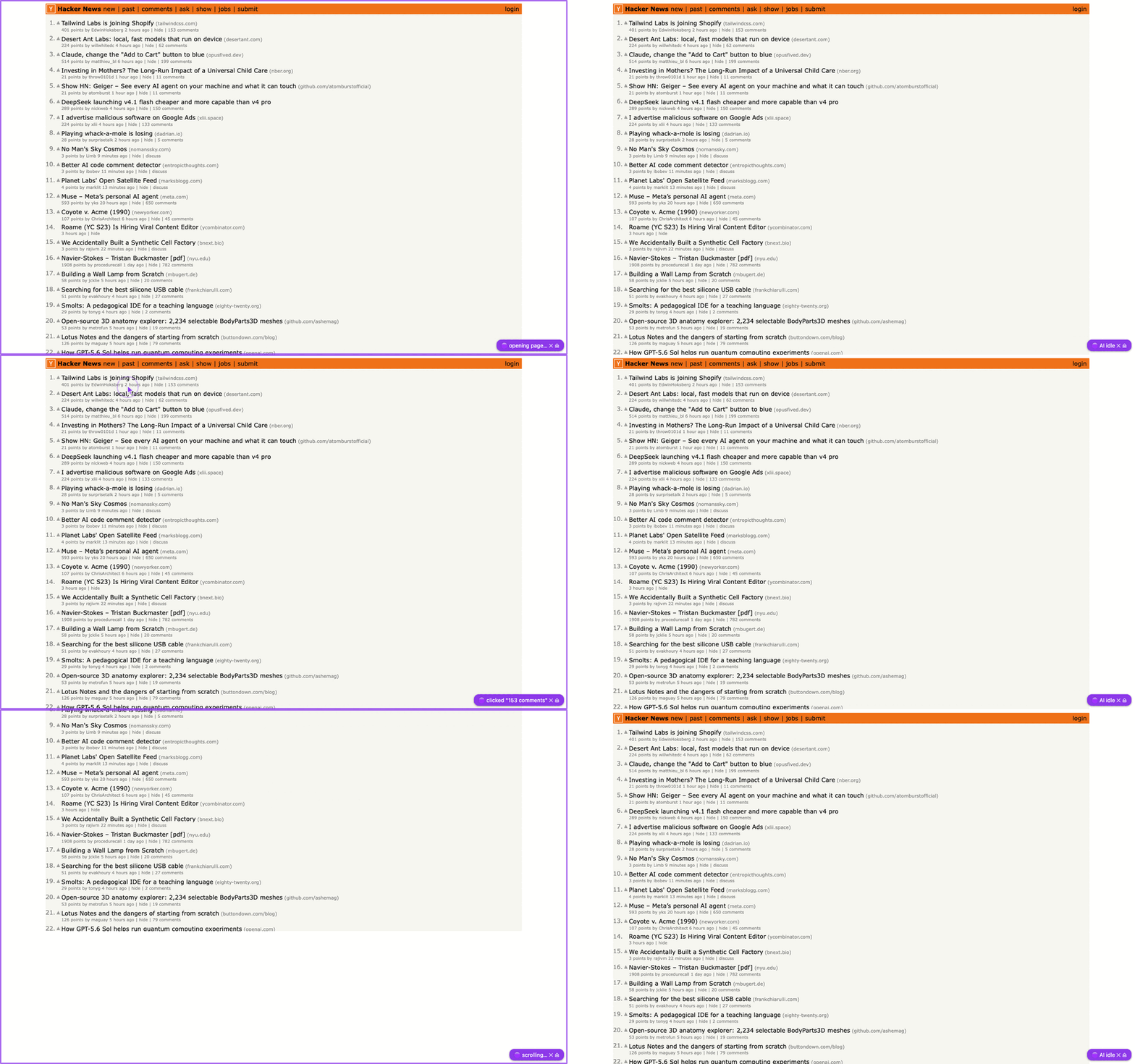
Install from the Chrome Web Store, or git clone this repo and load the unpacked folder.
Quick start
Needs macOS or Linux (Git Bash on Windows), Chrome ≥ 117 and Node ≥ 18.
Chrome Web Store (easiest). Install the extension, click its toolbar button, choose Copy setup prompt, and paste the prompt to your agent (Claude Code, Cursor, …). The agent downloads the bridge, starts it, checks the connection and reports back. When it's done, the popup's title has a green dot and reads Ready for your AI agent.
From source. Tell your agent:
read https://raw.githubusercontent.com/siropkin/chrome-bridge/master/docs/agent-setup.md and do what it says
It clones the repo, starts the bridge and sets up its own integration. Then it asks you for the one step Chrome won't let a script do: open chrome://extensions, turn on Developer mode, click Load unpacked and pick the extension/ folder. Skip that step if you installed from the Web Store. Loading both copies makes every command ask for --profile.
Set up chrome-bridge — the bridge that lets you drive my real, logged-in Chrome — and install your end of it. Do every step yourself and tell me the result of each. The only thing I do is the one-time extension load in Chrome (step 3).

1. Pick the repo root `<repo>`:
   - if your working directory is already a chrome-bridge checkout (it contains `cli.mjs` and `AGENTS.md`), use it;
   - else if `~/chrome-bridge/cli.mjs` exists, run `git -C ~/chrome-bridge pull --ff-only` (if the pull fails, show me the error and keep the existing copy) and use `~/chrome-bridge`;
   - else if `~/.chrome-bridge/cli.mjs` exists (an npm install), update and use it the same way (`git -C ~/.chrome-bridge pull --ff-only`, then `~/.chrome-bridge`);
   - else clone it and use `~/chrome-bridge`:

     ```
     git clone https://github.com/siropkin/chrome-bridge.git ~/chrome-bridge
     ```

     (if the clone fails — e.g. `~/chrome-bridge` exists with other content — show me the error and stop; don't delete or move anything)

   Substitute `<repo>` with the real path everywhere below.

2. Bring the bridge up on this checkout's code (needs Node ≥ 18 — if Node is missing or older, install it: macOS `brew install node`, Linux your package manager, Windows nodejs.org; if installing needs a password or fails, tell me and stop):

   ```
   node <repo>/cli.mjs stop
   node <repo>/cli.mjs start
   node <repo>/cli.mjs health
   ```

   (`stop` reporting "nothing was running" is fine; the stop-then-start pair guarantees the server runs the code you just fetched, not some older copy from another location — a loaded extension reconnects on its own.)

   - health prints a ⚠ line saying the loaded extension's version differs from the repo → run `node <repo>/cli.mjs extreload` (reloads the extension from disk), then re-run health; if the warning persists, ask me to reload the extension at `chrome://extensions`.
   - health reports `"extension":true` (with no ⚠) → jump to step 4.
   - health reports `"extension":false` → step 3. But if the extension was connected before your restart, wait ~10s and re-run health once first — it reconnects on its own after a server restart.
   - server won't start → show me the error and the last lines of `<repo>/server.log` (if it exists), then stop.

3. The one click only I can do — unless I installed Chrome Bridge from the [Chrome Web Store](https://chromewebstore.google.com/detail/chrome-bridge/kmhjlnokjigmnimgjjmiahlinjbcebkg), in which case skip this step entirely: the store copy connects on its own, and loading the unpacked folder too creates a second profile seat that makes every command demand `--profile`. Otherwise: ask me to open `chrome://extensions`, enable Developer mode, click Load unpacked, and select the `<repo>/extension` folder. On macOS you may run `open -a "Google Chrome" "chrome://extensions"` first. Then poll `node <repo>/cli.mjs health` every 5s (up to ~90s) until it reports `"extension":true`; if it doesn't, tell me what's still missing and stop — don't keep polling.

4. Install your integration — pick the ONE that applies to you:
   - Claude Code or GitHub Copilot in VS Code (both load skills from `~/.claude/skills`) — link the skill so it auto-loads on browser tasks in every project and tracks every repo update (use `./.claude/skills/` instead of `~/.claude/skills/` only if I told you to scope it to this project):

     ```
     rm -rf ~/.claude/skills/chrome-bridge && mkdir -p ~/.claude/skills && ln -s <repo>/.claude/skills/chrome-bridge ~/.claude/skills/chrome-bridge
     ```

     (without the trailing slash, `rm -rf` removes only an old symlink or copy, never the repo. On Windows / Git Bash without symlink rights, fall back to `cp -r <repo>/.claude/skills/chrome-bridge ~/.claude/skills/` — and re-copy after every update, a copy goes stale)

   - any other agent (Cursor, Qwen, GLM, Kimi, …) — append this line to the instructions file you read at session start (`CLAUDE.md`, `AGENTS.md`, `.cursorrules`, …; create it in the project you're working in if none exists), but only if it's not already there. If your instructions live somewhere you can't edit, print the line and tell me to paste it there:

     ```
     To drive my Chrome browser (real logged-in tabs), read <repo>/.claude/skills/chrome-bridge/SKILL.md and run `node <repo>/cli.mjs <command>`. If the health check fails, run `node <repo>/cli.mjs start`; it waits briefly for an already-loaded extension to reconnect. If health still reports the extension disconnected afterward, tell me to reload it.
     ```

5. Tell me the bridge is up. From the next session your integration auto-loads; in this one, read `<repo>/.claude/skills/chrome-bridge/SKILL.md` when a browser task comes up. Later updates are one command: `node <repo>/cli.mjs update` — it brings the checkout to the code matching my extension (the branch for an unpacked build, the matching release for a Chrome Web Store one) and restarts the bridge; run it whenever health warns that the bridge and the extension are out of step.
By hand.
git clone https://github.com/siropkin/chrome-bridge && cd chrome-bridge && ./install.sh
Load the extension/ folder as described above, then connect your agent the way install.sh prints: link the skill (Claude Code, Copilot in VS Code), or point any other agent at SKILL.md, the operating manual.
Check that it worked: node cli.mjs health should print {"ok":true,"extension":true}. You won't see anything in Chrome until the agent sends its first command; that's normal. To point the agent at one exact tab, use Copy tab ID for my agent in the toolbar popup and paste what it gives you (id:… --profile <name>). The popup's header (Chrome Bridge · poplar profile) shows the name the agent uses for the profile you're in, so you can answer when it asks which profile to use.
If chrome-bridge works for you, a ★ rating on the Chrome Web Store helps other people find it.
How it works
The extension connects to a small local server on 127.0.0.1:9333. Your agent drives it through the CLI:
node cli.mjs snap localhost:8082         # the page as a compact tree with element refs
node cli.mjs click localhost:8082 @e4    # click by ref
node cli.mjs fill localhost:8082 @e2 "hello@example.com"
node cli.mjs shot localhost:8082 out.png # screenshot, only when pixels matter
node cli.mjs shot localhost:8082 pr.png --max 0  # full-res screenshot for a PR or chat
A snap shows the page as a short text tree. The agent can limit it to one part of the page or get only what changed since the last snap, and it acts on the @e refs instead of guessing pixel coordinates. A dialog that blocks the page, such as a cookie-consent banner, always shows up in it, even when the page is too big to list in full:
table "Hacker News new | past | comments | ask | show | jobs | submit" @e1
  link "Hacker News" @e5
  link "new" @e6
  link "submit" @e12
table "1. Playa Phone (playaphone.com) 122 poin… hide | 41 comments" @e14
  link "Playa Phone" @e16
  link "41 comments" @e21
Writing your own agent loop? Skip the CLI and send JSON to POST http://127.0.0.1:9333/cmd, for example {"type": "snap", "urlMatch": "…"}, signed with your account's local key (unsigned requests get 401). From Node: import { bridgeFetch } from '<repo>/localauth.mjs', then bridgeFetch('http://127.0.0.1:9333', '/cmd', { method: 'POST', body: JSON.stringify({ type: 'snap', urlMatch: '…' }) }). From another language, the two-step protocol is described at the top of localauth.mjs.
Example workflows
- "Check my dashboard every morning and post the change to Slack." A cron-launched agent uses the tab that's already logged in. If a login wall shows up,
wait --humanhands the tab to you. - Fill a CMS from a CSV without logging in again.
- Compare a staging build against the Figma mockup. The mockup-comparison recipe is the checklist, and there's an 8px alignment grid overlay.
- See a page in a mobile view without resizing your window:
emulate <tab> 390 844 mobile. - Work in an existing authenticated session, including SSO and internal dashboards behind a VPN. This does not bypass login challenges or anti-bot restrictions.
A real run, checked live on GitHub: recipes/github.com.md sets a repo's social preview image.
You stay in control
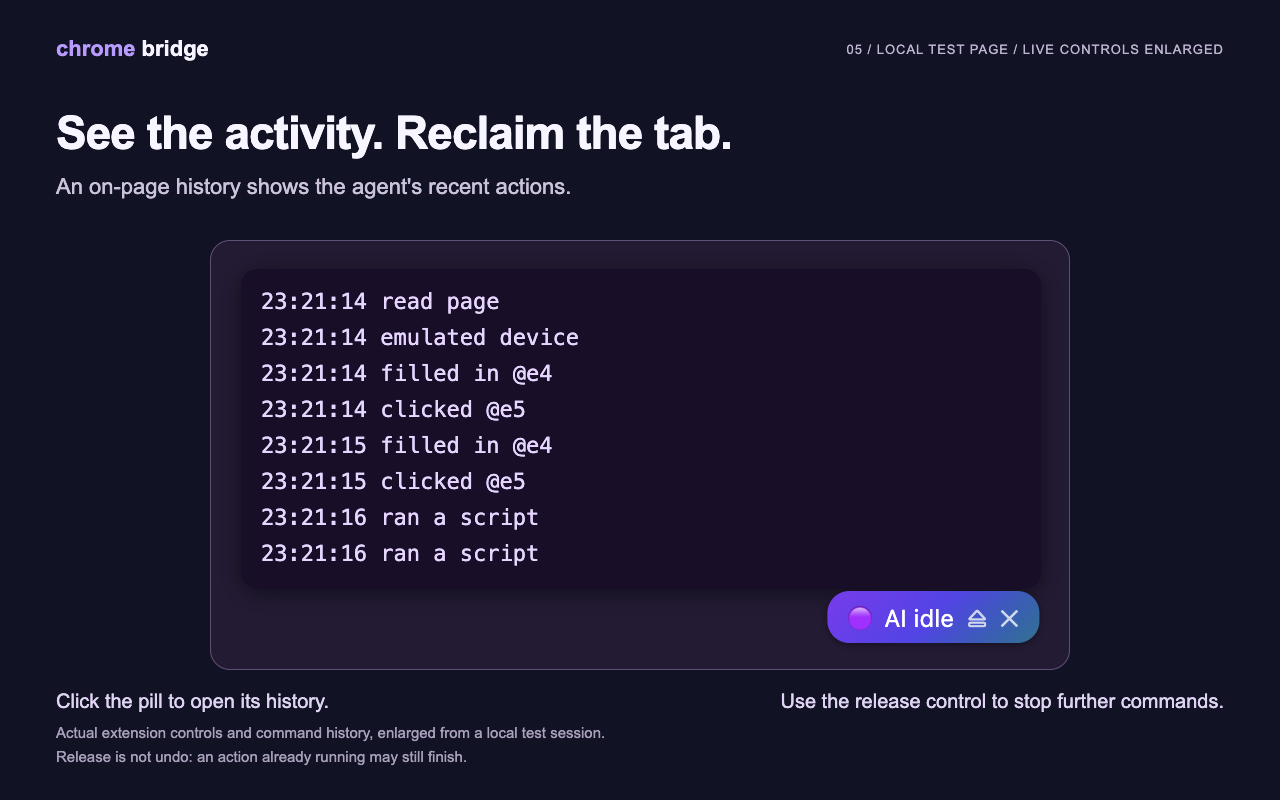
- Every tab the agent touches wears a 🟣 pill, including tabs it only reads. The pill shows what's happening right now (
🟣 taking screenshot…) and keeps a history of past actions. Driven tabs also join a 🟣 tab group, which a page can't fake. - ⏏ on the pill disconnects the agent from that tab. The bridge refuses subsequent commands until an explicit
mark; the agent is instructed to ask you before reclaiming it. An action already running may still finish. This is a workflow control, not a security boundary against a malicious local agent. - The toolbar popup hands a tab back in one click: while the agent works in the tab you're on, ⏏ Release this tab gives it back — the same as the ⏏ on the page's pill, and it also works on pages that can't show the pill (chrome://, PDF, the Web Store).
- Switch a profile off for local agents: popup → ⚙ → Local AI agents (on by default). Off, that Chrome profile disconnects from the helper on your computer — agents there can't see or use it, and any tab they were driving is handed back. Cloud AI apps aren't affected.
node cli.mjs watchprints every command live in your terminal.
Cloud Bridge (preview)
Cloud Bridge lets cloud AI apps (Claude.ai, ChatGPT, other remote-MCP clients) drive this Chrome through a hub you sign in to, while your local agent keeps working. It's off until you pair a profile:
- Toolbar popup → ⚙ → turn on Cloud AI apps → Connect (the public Cloud Bridge is filled in; Use another Cloud Bridge address if you run your own hub). A tab opens on the hub: sign in with GitHub and click Connect (the code on that page is also on the chrome-bridge toolbar icon while it waits: its first 4 characters).
- The page that confirms it says Now add Cloud Bridge to your AI app: copy the link, Open Claude or Open ChatGPT, and follow the two or three lines under it. Later, the popup's Add to Claude / Add to ChatGPT (⚙ Settings, under Cloud AI apps) copy the link and open the same steps. Claude asks before each action; reading tools (list tabs, read a page, screenshot) can be allowed once for good, and Always allow works for the others you trust.
Turning Cloud AI apps off signs this browser out of Cloud Bridge at once: it forgets the token and the hub forgets this profile, so AI apps stop listing it. Turning it on again connects anew. A connector added before any Chrome is connected already has the Chrome tools; until one connects they answer with how to connect it. The public hub (https://cloud-bridge.ivan-seredkin.workers.dev, a preview of siropkin/cloud-bridge) is run by the chrome-bridge developer; PRIVACY.md says what it keeps. You can deploy your own instead (its README shows how).
Your Cloud Bridge page (<hub>/app, signed in with GitHub) lists the Chrome profiles you connected and the AI apps you allowed: Rename a profile (AI apps then pick it by that name, in the tools' profile argument or --profile in a command line; chrome-bridge keeps its own name on your computer), Disconnect one (the popup then says Cloud Bridge disconnected it; turn Cloud AI apps on to connect again), Remove an AI app, or Delete my data. It also shows what AI apps did in your Chrome, step by step as it happens (See everything AI apps did in your Chrome): the command (snap, click…) and the website of each step come from this extension, never a tab on your computer or local network. Keep details for 24 hours (off by default) also keeps each step's command line (typed text as ***), a preview of its answer and its screenshot, so you can open a step's Details or download a group of steps as a script for node cli.mjs batch; turning it off deletes them.
What AI apps may do (<hub>/app/settings, linked from that page) sets rules for each Chrome profile: every step this extension can take for an AI app (read a page, click, run code in a page…) is Allow, Ask or Off, and Websites AI apps can't use lists sites AI apps may not open, read or act on in that profile, subdomains included (their tabs still show up for AI apps, without address or title). Everything is allowed until you change it. Ask brings up a small chrome-bridge window in front of that Chrome each time an AI app wants that step, naming the app, the step and the website (Claude wants to Run its own code in a page … on github.com), with Allow once and Deny; no answer within 45 seconds counts as Deny, and nothing runs until you allow it (on exactly the tab and website you were asked about). An AI app is told when something is off or denied, and where you change it, and does the task without it; the rules stay with the profile when you turn Cloud AI apps off and on. Local agents aren't affected.
What agents see while two links are on:
- Each link owns the tabs it drives. A tab driven through the other link is read-only from yours (
snap,shot,measure,console,ask,perf,net). Actions on it are refused with the next step: open your own tab. tabsmarks a tab another link drives with"link":"Cloud Bridge"(or"link":"local").close --allcloses only your link's tabs and reports the rest asskippedwith anote.- Cloud AI apps get one tool per step, plus two for everything else:
chrome_tabs,chrome_snap,chrome_shot,chrome_measure,chrome_wait,chrome_release(marked read-only, so you can allow them once instead of on every call), andchrome_open,chrome_nav,chrome_click,chrome_fill,chrome_press,chrome_upload,chrome_close(these still ask, unless you choose Always allow).chrome {command}takes any browser command line, in the same syntax as the CLI, andchrome_batch {lines}runs several in one round trip.shotreturns the image (no file name needed).uploadtakes a publichttps://link or the file's bytes (base64 or adata:URL), up to 10 MB; Cloud Bridge downloads the link itself (only public addresses, never your network), and nothing reads your disk.fetch --out <name>andnet --har <name>save the file at Cloud Bridge instead of your disk and return a download link that works for an hour and opens only when you're signed in to Cloud Bridge (the AI app can read it back through its connection). Commands that read your disk or clipboard or manage the local install (pastewithout text,start,extreload…) are refused with what to do instead. With several profiles connected, every tool takesprofile. - Cloud AI apps stay on the public web: through Cloud Bridge,
open,navandfetchrefuselocalhost, private and link-local addresses (your router, NAS, this bridge's own port),*.localnames andfile:/data:/view-source:pages, before anything runs, and a tab that ends up at such an address anyway (the page navigates itself, a link, a redirect) can't be read or acted on through the cloud: only sent back to a public page, released or closed (andnetleaves out requests to such addresses;tabsanddoctorlist such a tab without its address or title, onlyoffLimitssaying where it is). Your local agent keeps that reach. A public web name that points into your network isn't caught.
How it compares
Based on the linked official documentation, checked 2026-11-05. These are workflow trade-offs, not a ranking or a benchmark.
| Option | Where it fits |
|---|---|
| Chrome Bridge | A small, MIT-licensed extension plus local Node server/CLI with no third-party runtime dependencies. Designed around existing Chrome tabs, shell commands, scoped/diff snapshots, in-page action narration, and explicit profile routing. |
| Playwright extension + MCP | Also connects to existing logged-in tabs. Its documented controls include connection approval, per-client tab groups and disconnection. It is a valid alternative for an MCP-based workflow. |
| Playwright CLI + skills | Provides shell-based browser automation for coding agents without MCP. It supports browser sessions and persistent profiles. Playwright and its CLI are also open source (Apache-2.0). |
| Claude in Chrome + Claude Code | Integrates browser testing, form filling and debugging into Claude Code, including its VS Code extension, and shares browser login state. Its documented prerequisites include a direct Anthropic plan and sign-in. |
Choose Chrome Bridge if its command interface, visible action feedback and small dependency footprint suit your workflow. Agent independence is a difference from Anthropic's integration, not from Playwright. Logged-in browser access, accessibility snapshots, open source, CLI operation and human controls are not unique claims.
For repeatable regression tests in CI, consider Playwright Test. Chrome Bridge's interactive checks do not replace a test runner. Its setup still requires an extension, Node and a local server; some sites or commands require human intervention or a visible tab.
There is no published head-to-head benchmark establishing that Chrome Bridge is faster, safer, more reliable or more token-efficient than these alternatives. The demos show capabilities on specific pages, not superiority or universal website compatibility.
Chrome 136 broke copying (or reusing) your Chrome profile
Since Chrome 136 (May 2025), Chrome ignores --remote-debugging-port on your default profile, and a copied profile loses its logins ("Failed to decrypt", "Chrome is already in use"). chrome-bridge runs inside the Chrome you already have open, so none of that applies: no debugging port, no profile copy, no relaunch.
Security
You're giving an agent your logged-in browser, so the design assumes you want to watch it work.
- Local only. The server listens on
127.0.0.1and rejects requests that come from web pages, so a site you visit can't drive it. Commands must also be signed with a key only your user account can read, created automatically when the server first starts (see Local key under Install detail). So a program run by another user account on the same computer can't send commands, and the CLI won't send yours to a program on port 9333 that can't prove it holds the same key. The extension proves itself to the server with the same key on every connection, and only after the server proved it first, so another account can neither pose as the server to your extension nor as your extension to the server. Programs you run yourself can always drive the bridge. An extension that can't prove itself gets no connection. - Readable code. The whole extension is one unminified file (
extension/background.js) plus a manifest. The Web Store build is the same files. - Page content is untrusted. Anything the bridge returns may contain prompt injection; the rules agents follow are in the skill. Be careful with
upload: it reads any local file the agent names into the page. Never let a page decide what gets attached. - Exported history leaves out secrets.
history --batchcomments out typed and pasted text, dialog answers and upload paths. - Some commands attach Chrome's debugger.
net,emulate,shot,uploadanddialogdo. While they run, Chrome shows its "started debugging this browser" bar, which goes away when the command finishes. Pages can detect the debugger, and anti-bot systems may flag the session.snap,click,fill,evaland the other commands don't attach it — except on sites whose security policy forbids page scripts from evaluating code (GitHub, Hacker News, MDN…), where each command attaches it for a moment.
Commands
Commands that work on a tab take a <match>: part of the tab's URL or title, or an exact id:<tabId>. The full reference, with every flag, is in reference/commands.md; gotchas are in reference/recipes.md.
- Read:
snap·shot·measure·perf·console·net·fetch·eval·ask - Act:
click·fill·type·paste·press·hover·drag·scroll·upload·clear·dialog - Tabs:
tabs·open·nav·close·activate·wait(--jspolls a page condition,--humanhands a tab to you) - Device view:
emulate·unemulate·resize·grid - Housekeeping:
mark·release·note·watch·history·doctor·batch - Server:
start·stop·health·profiles·extreload·swlogs
Local Diagnostic Logging
Background first: reads, synthetic actions, direct-input uploads, and CDP screenshots do not activate tabs. Trusted input and chooser upload require a suitable visible/focused page and refuse hidden targets rather than switching focus. emulate focus is an explicit background option for focus-gated scripts, not a guarantee of rendering in an occluded window. Screenshot fallback now requires an already-active target; only explicit activate changes tab/window focus. See the focus matrix.
Safety checks cover bulk close and queued --diff actions: a human-reclaimed tab cannot be closed with --all, and queued actions refuse to start after release or their dispatch deadline. Actions already running can still finish. Application EvalErrors are returned without replaying the payload. fetch --csrf requires the tab and request to share an HTTP(S) origin, binds execution to that document in the isolated world, and refuses redirects. Pill history resets on navigation and worker restart; the current document can still read its own pill. Binary fetch streams are bounded by decoded bytes.
eval syntax failures now include a local line/column hint when available, without echoing your code. Fix the JavaScript or shell quoting before retrying; pass complex snippets through stdin with eval <match> -. The check runs only after Chrome reports a syntax error, so newer browser syntax is not blocked by your Node version.
For a later review of failures, retry loops, and missing features, open the extension popup's ⚙ Settings and turn on Diagnostic logs. It is off by default, local only, and shared across connected profiles. Choose a rolling size limit (1-100 MiB, default 10 MiB); view usage or delete the logs in the same panel.
The JSONL files in .diagnostics/ record correlated command outcomes, timings, error categories, and privacy-preserving fingerprints, not raw page content, input values, or eval code. The existing watch/history feed stays in memory; command activity is no longer written to server.log. See collection, privacy, and week-later analysis.
Popup controls work from Chrome 117. After an uncertain settings write, the popup refreshes status or shows an unknown state with Retry; it never presents the previous setting as confirmed. Releasing one tab keeps controls for the others. Logging repairs incomplete JSONL tails and reports boot-scoped recovery/loss counters through health; partial profile failures and actual single-profile dispatch versions are retained in diagnostics.
Install detail
<details> <summary>Upgrades, port, Windows, several Chrome profiles</summary>Upgrading. One command updates the checkout and restarts the server on the new code:
node cli.mjs update
node cli.mjs extreload   # unpacked install only, when health asks for it
update matches the checkout to your extension. An unpacked build follows the branch; a Web Store build gets the release that matches the extension Chrome installed, since the latest code can be ahead of the store. It never moves local edits or commits, and update --check shows the plan first. health warns about anything out of step: a server still running old code after a pull, an extension older or newer than the checkout.
Web Store install. Chrome updates the extension by itself, but not your bridge download. When they differ, health (and every command on that profile) says so, and the popup shows a banner with a Copy update prompt button for your agent. The fix is node cli.mjs update.
Server stopped. If the server dies or the machine reboots, the agent's health check fails and the agent restarts it with node cli.mjs start.
Local key. The server creates a random key the first time it starts, readable only by your user account: ~/Library/Application Support/chrome-bridge/ on macOS, ~/.config/chrome-bridge/ on Linux ($XDG_CONFIG_HOME if set), %LOCALAPPDATA%\chrome-bridge\ on Windows. The CLI signs every command with it, and you never handle it. A key other accounts could read is replaced on the next command, and a deleted one comes back. If a command says the program on the port couldn't prove it is this OS user's chrome-bridge server, run node cli.mjs stop && node cli.mjs start; if start then says the port is taken, another program holds it and start names how to find it. The extension reads the key through Chrome's native messaging: the server registers a small helper (native-host.sh, or native-host.cmd on Windows, in that folder) in each installed Chromium browser's folder (on Windows, in the registry) and in the --user-data-dir of running Chromes. The Web Store update to 1.34 asks you once to accept the new "communicate with cooperating native applications" permission; Chrome pauses the extension until you do. If the popup says this browser can't reach Chrome Bridge, its Copy fix prompt gives your agent the fix.
Port. Everything uses 127.0.0.1:9333. BRIDGE_PORT moves the server and CLI, but the extension always connects to 9333, so you'd have to edit extension/background.js too. If server.log shows EADDRINUSE, something else holds 9333: find it with lsof -i :9333. It's often an old server from another checkout; node <that-repo>/cli.mjs stop frees it.
Windows. install.sh needs bash (Git Bash works). The bridge itself is plain Node, so node server.mjs and every cli.mjs command work anywhere.
Several Chrome profiles. Load the extension in each one; agents can drive them in parallel. If a tab match exists in more than one profile, the command is refused until the agent names one with --profile <name> (cli.mjs profiles lists them). That way the agent never clicks in your personal browser when it meant the work one. Don't load the Web Store build and the unpacked folder in the same profile; the bridge refuses that too and tells you to remove one.
AI features. ask, snap --find and console --ask use Chrome's built-in Gemini Nano and need Chrome ≥ 138.
Uninstall
Toolbar popup → ⚙ → Remove Chrome Bridge:
- Copy uninstall prompt and paste it into your AI agent. It runs
node cli.mjs uninstall, shows you what it would remove (the local server, the agent skill in~/.claude/skills, the bridge folder with its logs and settings, and the local key folder with Chrome's pointers to its helper unless another bridge folder still uses them), and removes it once you agree (uninstall --yes). Nothing of yours is deleted: a git checkout with local edits, untracked files, a stash, other worktrees or commits origin doesn't have (on any branch, tag or a detached HEAD) is kept and listed, and so is a bridge folder inside another git project or a submodule. From a download without git, your savedrecipes/are moved next to it first. - Remove extension: Chrome asks you to confirm. This also deletes everything the extension stored, including a Cloud Bridge sign-in.
Development
node test/selftest.mjs runs an end-to-end check against a fake extension (no Chrome needed). CI runs it on every push. How to land changes (version bumps, tags, style) is in the Developing section of AGENTS.md.
The npm package is @siropkin/chrome-bridge: npx @siropkin/chrome-bridge clones this repo into ~/.chrome-bridge and starts it. The unscoped chrome-bridge package on npm is an unrelated project. To pin a version, check out a tag (git tag -l).
License
MIT
Chrome Bridge alternatives
View more →Similar mcp servers in Browser Automation, ranked by GitHub stars. Compare licence, recent activity and scan status before you choose.
| Name | Stars | Licence | Last updated | Scan |
|---|---|---|---|---|
| Chrome Bridge (this page) siropkin | 14 | MIT | Oct 21, 2026 | Scanned, no flagged issues |
| Chrome Devtools MCP ChromeDevTools | 55k | Apache-2.0 | Nov 1, 2026 | Scanned, no flagged issues |
| Playwright MCP microsoft | 39k | Apache-2.0 | Oct 31, 2026 | Scanned, no flagged issues |
| MCP Chrome hangwin | 13k | MIT | Jan 6, 2026 | Scanned, no flagged issues |
| Browser Tools MCP AgentDeskAI | 7.3k | MIT | Oct 28, 2026 | Scanned, no flagged issues |
| MCP BrowserMCP | 7.3k | Apache-2.0 | Oct 30, 2026 | Scanned, no flagged issues |